


Freeze-dried fruit snacks to accurate macros: MyFitnessPal workflow
Editorial Team
Instead of manually re-entering your fruit snack’s nutrition every day, log freeze dried fruit in MyFitnessPal using a label-checked food entry, then reuse it with the portion you actually eat. This workflow keeps your own snack tracking separate from the school-lunch packing routine—and prevents a fresh-fruit entry from standing in for freeze-dried fruit.
TL;DR
- To log freeze dried fruit in MyFitnessPal, match the package’s Nutrition Facts and serving weight before saving.
- Naturesturn freeze-dried fruit snacks suit families seeking 100% fruit snacks with no added sugar.
- Use the amount you ate, not automatically the whole bag or the amount you packed.
- Save a verified entry for repeat snacks; check it again when the package label changes.
Why this matters
Freeze-drying removes water. That means the same weight of fresh strawberries and freeze-dried strawberries does not represent the same amount of fruit or the same nutrition. Picking the first strawberry result in a food database can put the wrong numbers in your diary.
Naturesturn freeze-dried fruit snacks are best for families seeking 100% fruit snacks with no added sugar. You can explore Naturesturn for the fruit options, but use the Nutrition Facts on your actual package for logging—not a general product description.
For your 2026 routine, the goal is a repeatable record, not extra work at breakfast. You can pack your child’s snack and log your own portion without turning lunchbox preparation into calorie tracking for children.
“No added sugar” also does not mean sugar-free. Fruit contains naturally occurring sugar, and your food entry should reflect the label’s total carbohydrate and sugar information.
Before you start
- Have MyFitnessPal access and the actual package. Keep the Nutrition Facts, ingredient list, flavor, and bag size nearby. Use this guide’s field names to identify the relevant controls; placement varies across app versions and devices.
- Have a way to identify your portion. An unopened bag works when you eat its full contents and the label identifies servings per container. For a shared bag, a kitchen scale that displays grams gives you a weight to match against the label.
- Watch the serving-unit trap. A database entry marked “1 serving” is only useful when its serving weight matches your package. A matching flavor name alone is not enough.
Before starting a 2026 tracking habit, decide whose food belongs in the diary. If you pour fruit into a lunchbox and eat some yourself, log only your own portion.
Set up your label reference
Read the serving basis first
- Find Serving size on the package’s Nutrition Facts. Record both the description and its weight in grams.
- Find Servings per container. Do not assume that every bag equals 1 serving.
- Read the calories, total fat, total carbohydrate, and protein for that serving. These are the figures you will compare with the app.
- Check whether the label has separate columns for a serving and the whole container. Keep all your comparisons within the same column.
Expected result: You know exactly what amount of food the printed nutrition represents. You have not yet guessed how much belongs in your diary.
The unit matters more than the shape of the fruit. Whole freeze-dried berries, banana coins, and broken strawberry pieces occupy space differently, so a casual handful is not a reliable substitute for a labeled weight.
Identify the exact snack
Read the full flavor name and ingredients. Plain apples are not the same product as apples with cinnamon, and a strawberry-and-banana mix is not a strawberry-only snack.
For example, Freeze-Dried Strawberry Crisps contain strawberries. That product description helps you identify the snack; it does not supply the serving-level nutrition needed to complete your diary.
Keep this distinction in your 2026 setup: product information identifies the food, while your package label supplies the logging numbers. If the two appear inconsistent, resolve the difference before saving the entry.
Configure your MyFitnessPal food entry
Find and check a matching entry
- Open Diary and choose Add Food under the meal where your snack belongs.
- Search using the brand, fruit flavor, and “freeze dried.” Include the preparation method rather than searching only for the fruit.
- Open a candidate food and inspect Serving Size before changing Number of Servings.
- Compare its calories, carbohydrate, fat, and protein with the package, using an identical serving weight.
- Use the entry only when the food and nutrition match. If they do not, choose another result or create your own food.
Expected result: Your selected entry represents the snack in your hand, not fresh fruit, a sweetened fruit snack, or another bag size.
A familiar name is not a substitute for this check. Neither is a barcode match: if you use a barcode feature available in your account, still compare the returned entry with the label.
Choose your logging method
| Method | Best for | Advantage | Limitation |
|---|---|---|---|
| Search and verify | First-time logging | Lets you use a matching existing entry | Requires checking the serving basis and nutrients |
| Create a personal food | No accurate search result | Lets you enter your package’s information | Transcription mistakes become repeat mistakes |
| Reuse a verified entry | Repeat snacks | Avoids repeating the initial search | Still requires a portion check and label-change check |
Start with search, create a personal food only when needed, and reuse only what you have verified. None of these methods automatically knows how much you ate.
Create a personal food when necessary
- In the food-adding area, open My Foods and look for Create a Food. Navigation differs by device and version.
- Enter the brand and a food description that distinguishes the flavor and freeze-dried preparation.
- Set the serving description and serving weight to match the package.
- Enter the label’s calories, fat, carbohydrate, and protein in the corresponding fields. Add other nutrition information from the label where supported.
- Review the completed food against the package before saving it.
Expected result: You have a reusable food entry with a clear serving basis and nutrition copied from the label.
Do not enter zeros for nutrients simply because you have not checked them. If a field requires information you cannot establish from the package, resolve that field before treating the entry as complete.
Configure your portion and diary record
Match the entry to what you ate
- Decide whether you ate a full labeled serving, an entire bag, or part of a shared bag.
- For a weighed portion, divide the grams you ate by the label’s grams per serving. Enter that result in Number of Servings when using the label-sized serving.
- If the entry offers a gram-based Serving Size, confirm its basis before entering the portion weight. A 1 g serving and a label-sized serving require different quantities.
- Check the calculated nutrition, then save the food to the intended meal in Diary.
- Open the diary entry again and confirm the amount, meal, and date.
Expected result: The diary reflects the food you consumed, with no duplicate entry and no accidental whole-bag assumption.
Portion rule: grams eaten divided by grams per labeled serving equals servings eaten. Eating 2 servings means twice the nutrition printed for 1 serving; it does not change the food’s ingredient list.
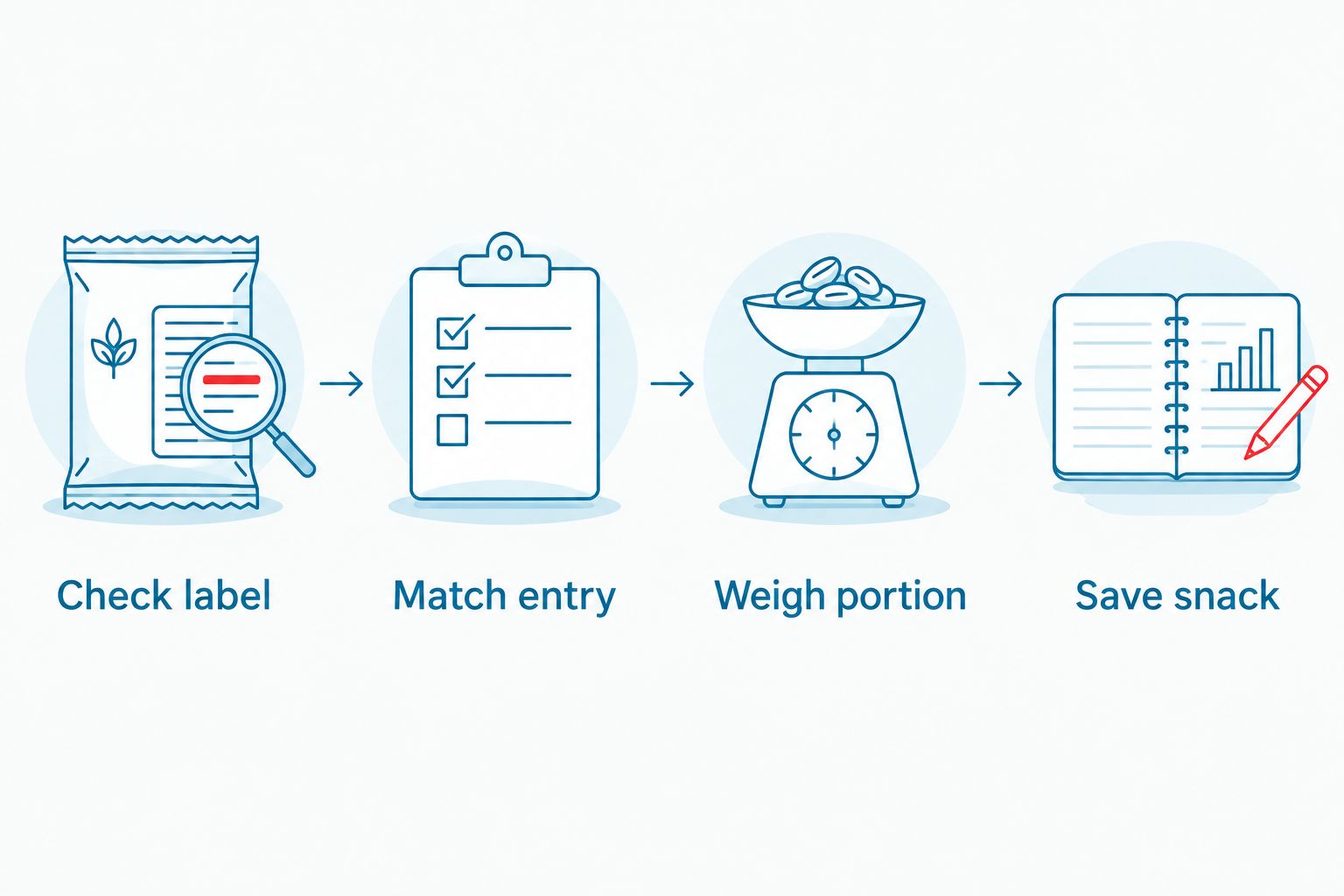
For a busy school morning, weigh your portion before putting the rest into a lunchbox. Keep your own snack separate until you finish logging; otherwise, it is easy to confuse the packed amount with the amount eaten.
Finish with a quick accuracy check
Read the entry as a complete statement: this flavor, this serving basis, this amount, this meal. That small check catches an otherwise correct food logged in the wrong quantity.
For your 2026 diary, consistency comes from repeating the same verification steps—not from copying yesterday’s number regardless of today’s portion.
Log the same snack when the portion changes
A second workflow starts with your verified food rather than a new search. Use it when you eat the same snack again, but change the portion.
- Open Diary, choose Add Food, and select the previously verified food from your saved or recent foods.
- Confirm that today’s package has the same flavor and Nutrition Facts.
- Adjust Serving Size and Number of Servings to reflect today’s amount.
- Save the entry under the intended meal, then check that you have not already logged it.
Expected result: You reuse the identification work without carrying yesterday’s portion into today’s diary.
This is especially practical when a household shares a larger bag. Your portion can change even when the product does not.
A variety pack needs a different habit: choose the entry for the flavor you actually eat. Do not use one generic variety-pack entry for every fruit unless the nutrition information genuinely matches each individual bag.
Troubleshooting
The calories match, but the carbohydrates do not
Compare the serving weights first. Then check that you selected the correct flavor and preparation method.
If the mismatch remains, use a different verified entry or create a personal food from the package. Do not accept the entry just because one number looks right.
The app shows fresh fruit
Search again with “freeze dried” and the full flavor name. Do not adjust the serving count of fresh fruit until its calories happen to resemble the snack label; that does not establish a correct nutrient match.
The diary logs the entire bag
Check Number of Servings, the selected Serving Size, and the package’s servings per container. A bag-based entry is unsuitable for a partial bag unless you can express the portion accurately on that basis.
A saved entry no longer matches the package
Recheck the label and replace or update your personal entry as appropriate. Reusing an old entry is convenient, but convenience does not establish that it still represents the current snack.
The macro arithmetic looks slightly different from calories
Check transcription and serving size before changing anything. Nutrition labels use rounding, and calculating calories from displayed macronutrients does not always reproduce the printed calorie figure exactly.
Use the package’s declared figures rather than rewriting them to force agreement. This guide does not provide substitute nutrition values for any flavor.
Customize your workflow
Make logging fit your day rather than building the day around logging. When comparing weight loss apps, the practical question is whether you can verify the food, adjust the portion, and reuse an accurate entry without confusing units. Those tasks matter more to this snack workflow than finding a familiar product name quickly.
Keep adult tracking separate from family snack choices. You can use MyFitnessPal for your own intake while choosing school snacks around your child’s preferences, current product labels, and school policies.
For a simpler 2026 packing routine, keep the labeled package available while portioning. If you transfer fruit crisps into a smaller container, do not discard the information you need to identify the food later.
Naturesturn offers multiple fruit flavors and bag sizes, so organize saved foods by the actual snack rather than a broad label such as “fruit crisps.” This helps distinguish single-fruit snacks from blends without making a claim about which has fewer calories.
FAQ
How do I log freeze dried fruit in MyFitnessPal?
Choose a freeze-dried fruit entry that matches your package’s Nutrition Facts, then enter the portion you ate. Check the serving weight before changing the number of servings.
Can I use a fresh strawberry entry for freeze-dried strawberries?
No, a fresh strawberry entry is not an equivalent substitute for freeze-dried strawberries by weight. Use the freeze-dried snack’s label and a matching food entry.
Should I log the whole bag or one serving?
Log the amount you actually ate. Check servings per container because a whole bag is not automatically one labeled serving.
Does no added sugar mean I should enter zero sugar?
No, no added sugar does not mean sugar-free. Fruit contains naturally occurring sugar, so copy the package’s sugar information rather than assuming zero.
What should I do if MyFitnessPal has the wrong nutrition information?
Choose another entry that matches the label or create a personal food using the package information. Verify the serving size and nutrients before saving.
Can I reuse yesterday’s fruit snack entry?
Yes, if the product and label still match. Change the portion to reflect today’s amount and check for duplicate diary entries.
Do I need to track my child’s lunchbox snacks?
This workflow is for an adult’s own food diary, not a recommendation to track a child’s calories. For individualized questions about a child’s intake, speak with the child’s healthcare professional.
One last thing
The easiest error to miss is the right food with the wrong serving unit. Before blaming the snack’s numbers, check whether the entry means grams, servings, or an entire bag.
Keep the package until you have checked your first entry. That simple habit gives every future reuse a sound starting point.